SEJR POS · MPOS
Take payment on MPOS
Here you learn how to take payment on MPOS.
Watch how it is done35 sec.
Afterwards you choose whether the customer gets a receipt.
Step by step
Tick a step when it is done
Button names are written as they appear on a till set to Danish. The brackets give the name on a till set to English, the first time a button is mentioned. Change the till's language
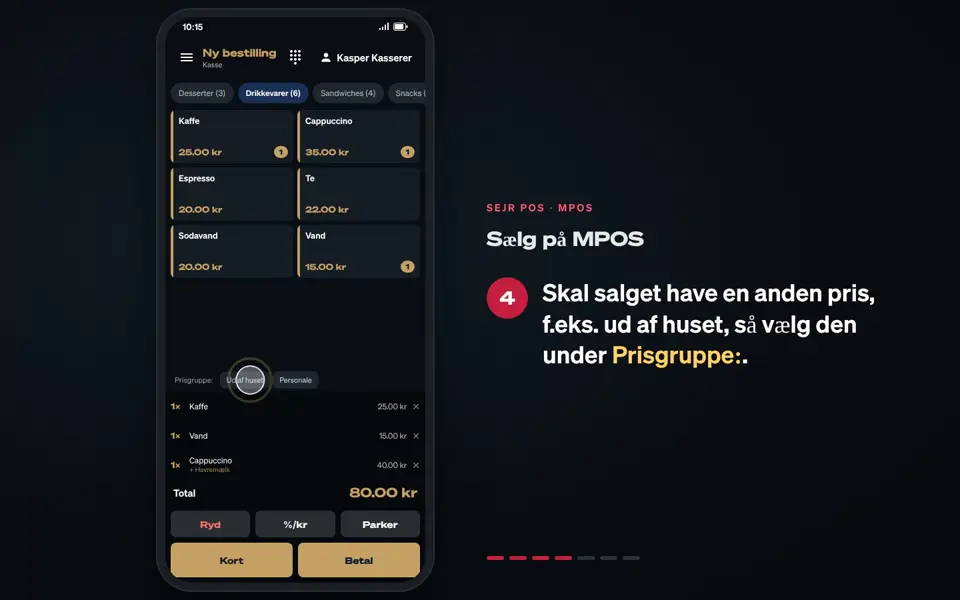
- Tap Betal (Pay).
- If the customer pays by card, tap Kort (Card), and ask the customer to hold the card or phone against the terminal.
- If the customer pays cash, tap Kontant (Cash).
- Tap the note the customer gives you, e.g. 100, or enter the amount. It is shown at Modtaget (Received).
- See Byttepenge (Change), and tap Bekræft (Confirm).
- Choose a receipt: Udskriv kvittering (Print receipt), Send via e-mail (Send by email) or Ingen kvittering (No receipt).
Good to know
- Pay exact: If the customer gives you the exact amount, tap Betal præcis (Pay exact).
- Print + email: Under Send via e-mail you can both print and send the receipt with Print + e-mail (Print + email).
- Other payment methods: If you have set up more payment methods, they are shown as buttons below Kontant and Kort.
- Cash: The Kontant button is only there when MPOS is a standalone till.
- Quick card payment: From the sale you can tap Kort and skip the payment screen.
Finishing up
The sale is complete, and MPOS is ready for the next customer.
Still not working? Contact SEJR Support. We are happy to help.
Did the guide help you?