SEJR POS · MPOS
Give a discount and change a price on MPOS
Here you learn how to give a discount and change a price on MPOS.
Watch how it is done37 sec.
The discount can be given as a percentage or in kroner.
Step by step
Tick a step when it is done
Button names are written as they appear on a till set to Danish. The brackets give the name on a till set to English, the first time a button is mentioned. Change the till's language
- Discount on one item
- Tap the item in the basket.
- Tap Giv rabat (Give discount) under Vælg handling (Choose action).
- Choose % or Beløb (kr) (Amount (kr)), and enter the discount.
- Tap Gem (Save).
- New price on one item
- Tap the item in the basket, and tap Ændre pris (Change price).
- Enter the new price, and tap Gem.
- Discount on the whole sale
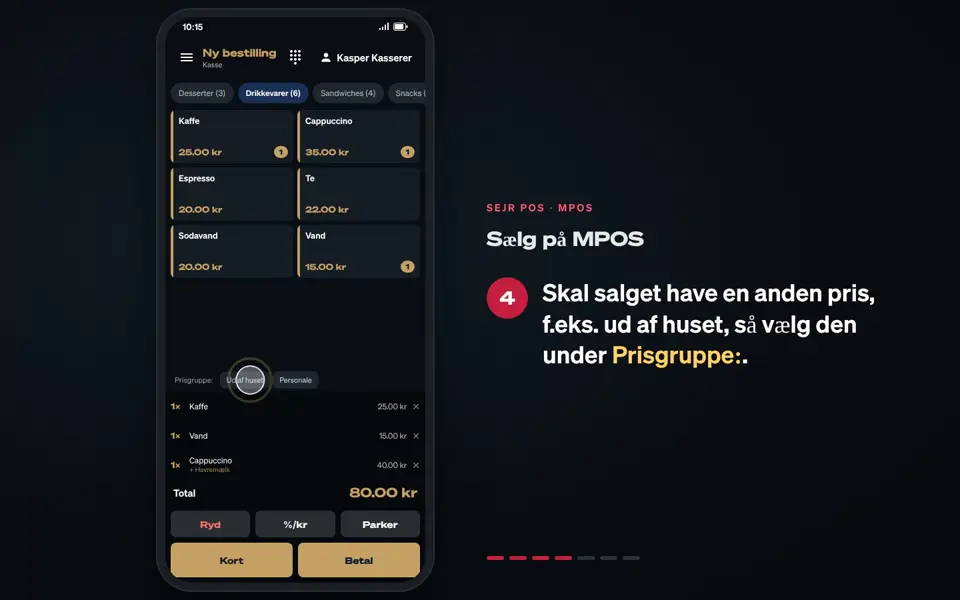
- Tap %/kr below the basket.
- Choose Procent (%) (Percent (%)) or Beløb (kr), and enter the discount.
- Tap Gem.
Good to know
- Remove the discount: Tap the item and Fjern varerabat (Remove item discount), or %/kr and Fjern rabat (Remove discount).
- Percent: A percentage discount must be between 1 and 99.
Finishing up
The discount is now on the sale, and the total is updated.
Still not working? Contact SEJR Support. We are happy to help.
Did the guide help you?