SEJR POS · MPOS
Sell on MPOS
Here you learn how to make a sale in the Kasse (Register) mode on MPOS.
Watch how it is done37 sec.
You choose the items and go on to payment.
Step by step
Tick a step when it is done
Button names are written as they appear on a till set to Danish. The brackets give the name on a till set to English, the first time a button is mentioned. Change the till's language
- Choose a category in the tabs at the top.
- Tap an item to add it to the basket.
- If the item has options, choose them and tap Tilføj (Add).
- If the sale needs another price, e.g. takeaway, choose it under Prisgruppe: (Price group:).
- To add a note to an item, tap the item in the basket and Tilføj bemærkning (Add note).
- Tap the cross next to an item to remove it.
- Tap Betal (Pay) when the customer is ready.
Good to know
- Clear: Ryd (Clear) deletes the whole sale.
- Quick card payment: Kort (Card) goes straight to card payment.
- Discount: See Give a discount and change a price on MPOS.
Finishing up
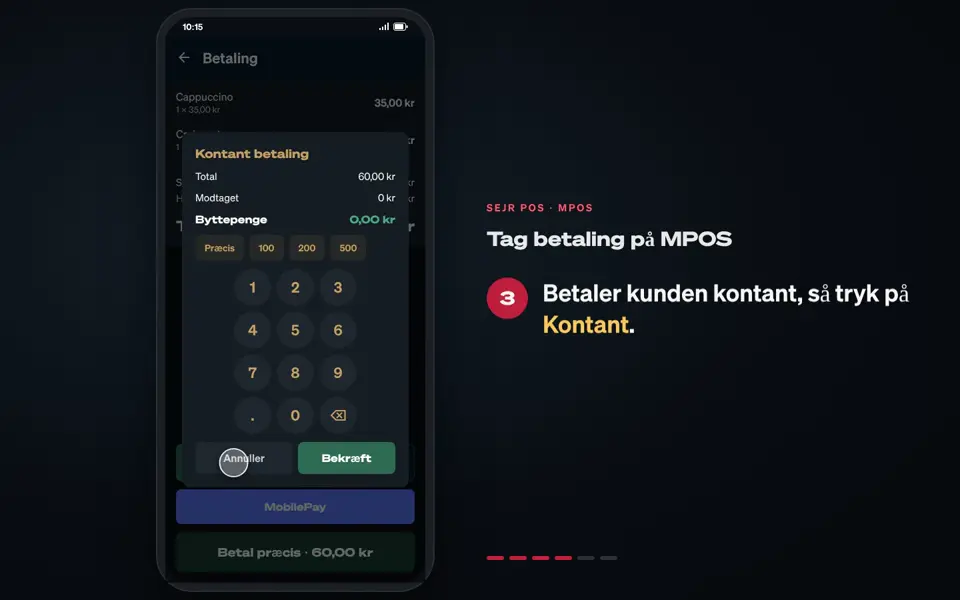
The next step is the payment: Take payment on MPOS.
Still not working? Contact SEJR Support. We are happy to help.
Did the guide help you?